Flight Master Controls
Every essential key and HUD toggle explained for smooth taxi and flight.
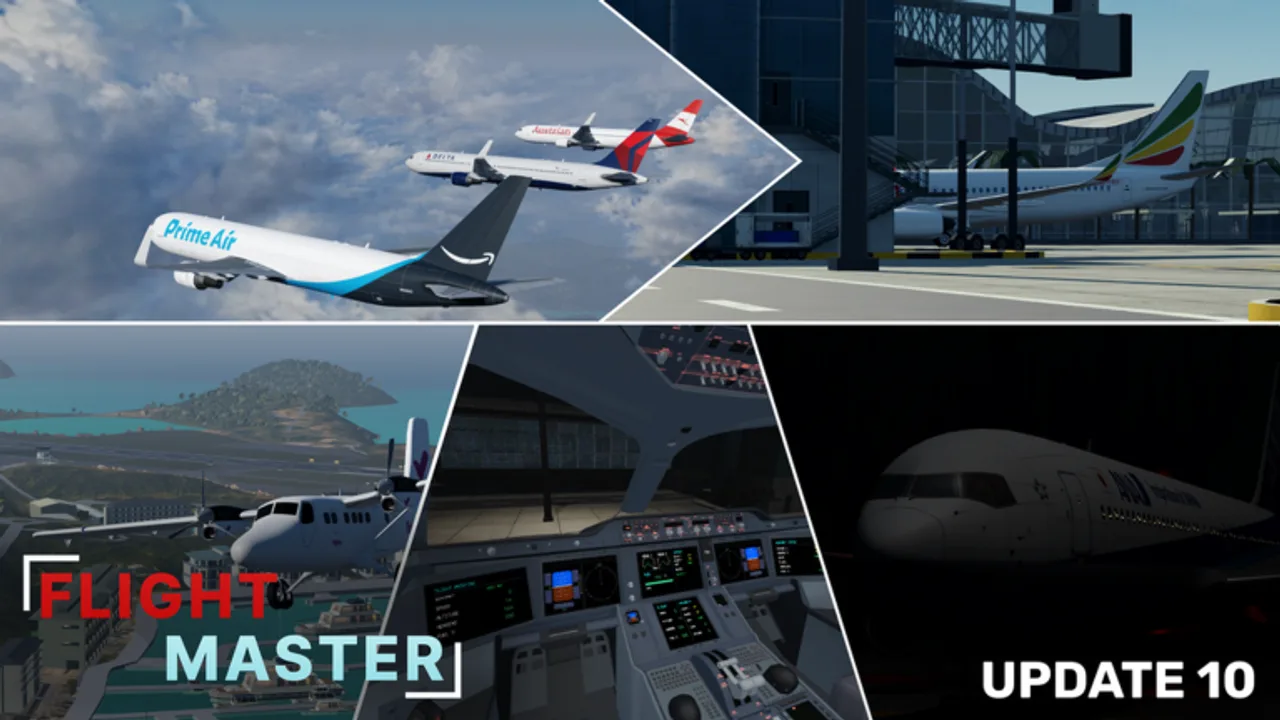
Mastering Flight Master controls is the difference between a cinematic takeoff and a terminal collision. This guide consolidates community-verified inputs from public tutorials and Update 10’s flight UI revamp. Keep it beside Getting Started during your first week.
Core PC control sheet
| Input | Action |
|---|---|
| E | Engines on / off |
| C | Toggle flight controls / yoke mode |
| W / S | Throttle up / down |
| A / D | Rudder (ground steering and yaw) |
| P | Pushback toggle |
| L | Lights panel |
| Mouse | Pitch and roll in flight |
| Camera menu | Exterior, cockpit, wing, gear views |
Exact labels can shift after UI revamps — open Settings after every major patch listed on Updates.
Engines and pushback
Start engines with E before you demand thrust. Listen for spool-up. For pushback, press P, add light throttle if needed, and steer with rudder. Cancel pushback before taxi speed builds. Facing the gate with full thrust is the most common beginner mistake called out in first-flight reviews.
Throttle and speed discipline
Use small W/S taps on the ramp. On the runway, advance smoothly toward takeoff thrust. After landing, reduce to idle, then apply reverse or brakes as the aircraft allows. Energy management details continue in Takeoff and Landing.
Rudder versus mouse on the ground
Many pilots taxi primarily with A/D rudder and save mouse yoke inputs for the rotate call. Mixing both without practice leads to weave. Pick one ground style for a full session, then experiment.
Lights panel checklist
Open L and work through a realistic flow:
- Navigation lights — on when moving
- Beacon — on with engines
- Taxi light — on during taxi, off when lined up
- Landing / strobe — on for runway and flight as appropriate
- Logo lights — optional for night screenshots
Good lighting helps ATC and other pilots see you, especially with volumetric clouds reducing contrast.
Cameras and cockpits
Cycle cameras to check wing clearance, gear trucks, and flare height. Update 10 improved A350 and 737 cockpits; use cockpit view for immersion but switch outside if you lose the runway visually. Interactive pedestal depth varies by airframe — do not assume every switch is clickable.
Flaps, gear, and spoilers
Use the on-screen flight UI toggles for flaps, gear, and spoilers. Typical jet flow: takeoff flaps before roll, gear up after positive climb, flaps up in stages, then reverse the process on approach. Landing gear left down for the entire cruise costs speed and looks unfinished on public servers.
Weather, failures, and settings
Update 10’s settings and weather reworks add failure options and atmosphere controls. Practice with failures off until your landings stabilize, then enable engine fire or similar scenarios in a private mindset session. Revisit sensitivity sliders if mouse input feels twitchy after the physics rework.
Mobile notes
Touch throttle and camera buttons replace some keybinds. Prioritize:
- Visible throttle control
- Gear/flaps buttons before final
- Camera switch for flare judgment
If mobile cockpit UI feels limited, fly exterior view until you learn energy cues, then layer cockpit immersion back in.
Controls for ATC and editor users
Tower and Map Editor interfaces use separate cursors and command panels. Learn pilot controls first so you understand what crews can physically do when you clear them. See ATC Guide and Map Editor.
Practice drills
- Gate to runway using only rudder steering.
- Runway lineup with full lights checklist spoken aloud.
- Rejected takeoff: throttle up, then abort before rotate.
- Touch-and-go focusing on gear/flaps timing.
- Night circuit emphasizing light discipline.
Troubleshooting input issues
- Plane ignores pitch — press C to ensure controls are armed.
- Spins on taxi — reduce throttle; rely on rudder.
- Cannot push back — check engines and obstacle clearance.
- Lights missing — reopen L after UI revamp.
- Weird physics — confirm you are not running conflicting scripts.
Related progression
Once inputs feel automatic, choose a better airframe on the tier list, learn airport quirks on Airports, and track patch notes so new wingflex or cockpit upgrades do not surprise you mid-flare.
Consistent control hygiene matters more than owning every Robux jet. Fly the checklist until it is muscle memory, then push difficulty with weather and shorter fields.
Frequently Asked Questions
Quick answers for Flight Master pilots, ATC, and builders.
How do I start engines in Flight Master?
Press E to toggle engines, wait for spool-up, then use pushback or throttle as needed.
What key opens lights?
L opens the lights panel where you can enable navigation, beacon, taxi, strobe, and related lights.
Why does my plane not respond to the mouse?
Press C to arm flight controls, confirm you are not still in a pushback-only state, and check Settings sensitivity.
Are controls the same on mobile?
Core actions exist on mobile via on-screen buttons, but layout differs. Learn throttle, gear, flaps, and cameras first.